Foam
Foam is a companion to Atrium. Through this standalone application the player can create a place on their computer for Atrium to call its own.
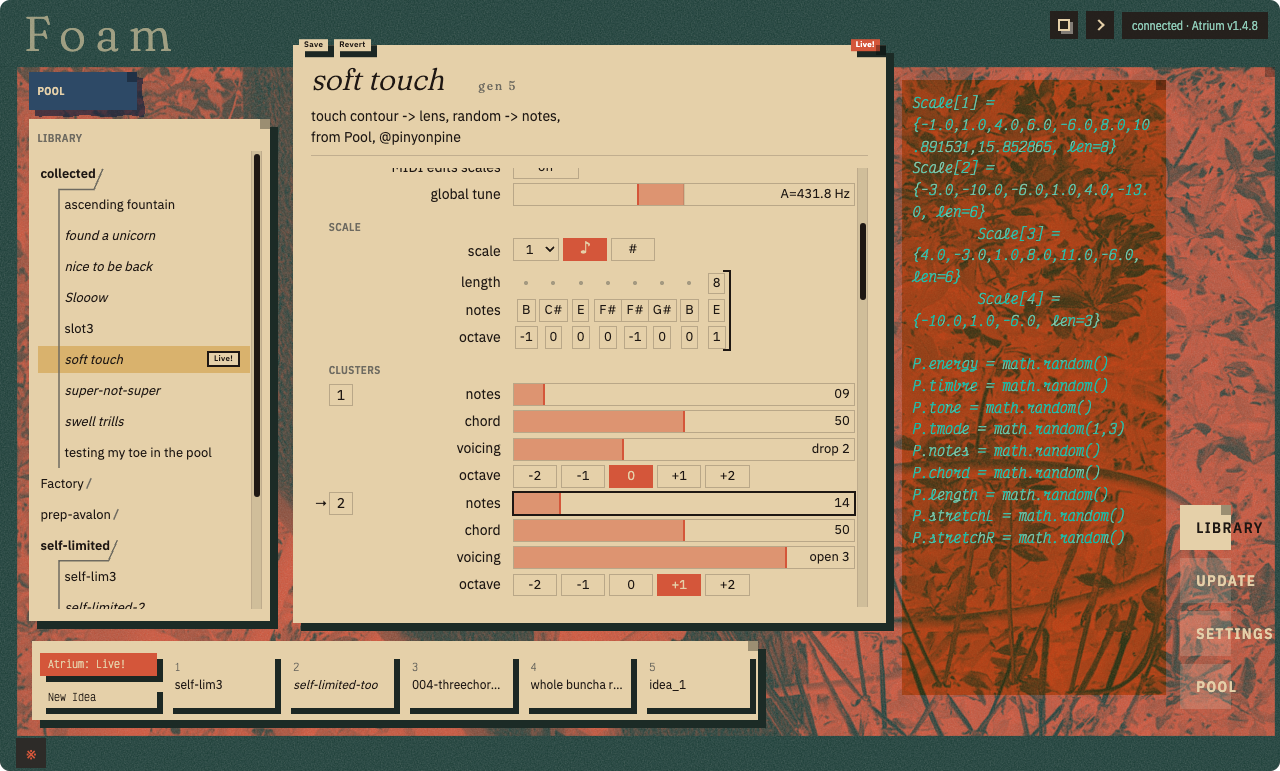
At its core, Foam can be used to:
- run / save / load / edit patches (either on Atrium, or saved to your computer, or shared by other players!)
- observe and manipulate Atrium's state in real-time, through a graphical view or as Lua code
- perform firmware updates with ease
- change Atrium's global settings
- connect with other players
Beyond all this, Foam is a waypoint for how we'd like to see general purpose computers relate to Atrium. There's much to discover on this road and we're excited to do it together.
What about the Clerk?
Foam entirely replaces the Clerk for all v1.5+ firmwares. As with any retirement, we thank Clerk for its dutiful service and we are excited to welcome the next generation into the fold! For those just arriving, Clerk was our browser-based mostly-online-only utility for doing some of the same basic tasks that Foam now manages.
Download
The best way to begin is to just begin! You can download Foam from Atrium's Welcome page which will always download the latest version. Supported operating systems are:
- macOS: All Apple Silicon, and Intel machines down to macOS 12 Monterey
- Windows: x86_64 only for Windows 10/11.
- Linux: Debian systems (eg. Ubuntu 22.04+) and Arch Linux.
Once the installer is downloaded, run it and install Foam onto your computer.
Now, grab your Atrium & its trusty USB-C cable, and get ready for new territory to unfold!
Updating from v1.3.2 (or earlier)
Foam requires Atrium firmware v1.5+, so if yours is currently running an earlier version the first thing you'll need to do is update. The initial process will take a full minute – Atrium will first update its firmware and then your patches will be safely migrated to the new format. Subsequent updates should take around 30 seconds.
For the smoothest on-boarding, we recommend this first-time sequence
- Connect your Atrium to your computer over USB-C.
- Open Foam & it should automatically bring you to the Update page, letting you know that an update is required!
- Click Update firmware and keep Atrium connected until the process is complete.
- After the firmware is updated, Foam will then automatically convert your patches to the new v1.5+ formatting.
- Once the entire process is complete, you'll see Update complete. and confirmation that you are running the latest version.
The boring (yet probably good to know) details
- The first time Foam is run, it creates a
~/Documents/Atriumfolder on your computer - When you use Foam to update an Atrium from v1.3.2 (or earlier), the patches on your Atrium are backed up to
~/Documents/Atrium/backups/devicebefore being migrated to the new format - When you import a pre-v1.5+ patch into Foam's Library, it will automatically update to the new format and a backup of the original patch will be stashed in
~/Documents/Atrium/backups/already-converted
NOTE: If you bought your Atrium before September/October 2026 and you’re using Windows, you might need to follow these steps if you’re seeing Foam fail to enter the updater. If your Atrium was purchased after this period, it should automatically connect in Bootloader mode.
Library
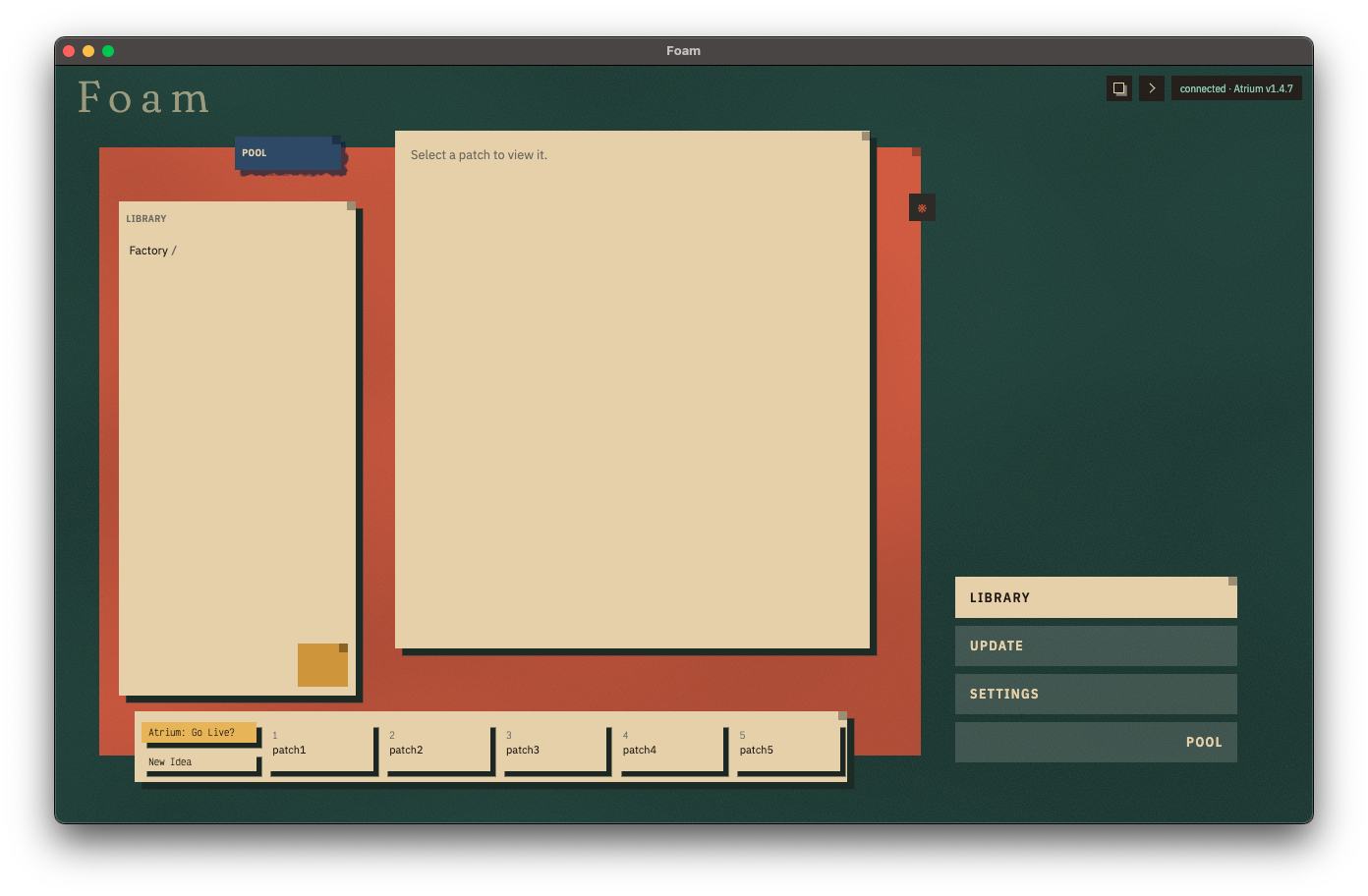
A simple beginning...
Your Library
The Library pane holds all the patches stored on your computer at ~/Documents/Atrium/patches:
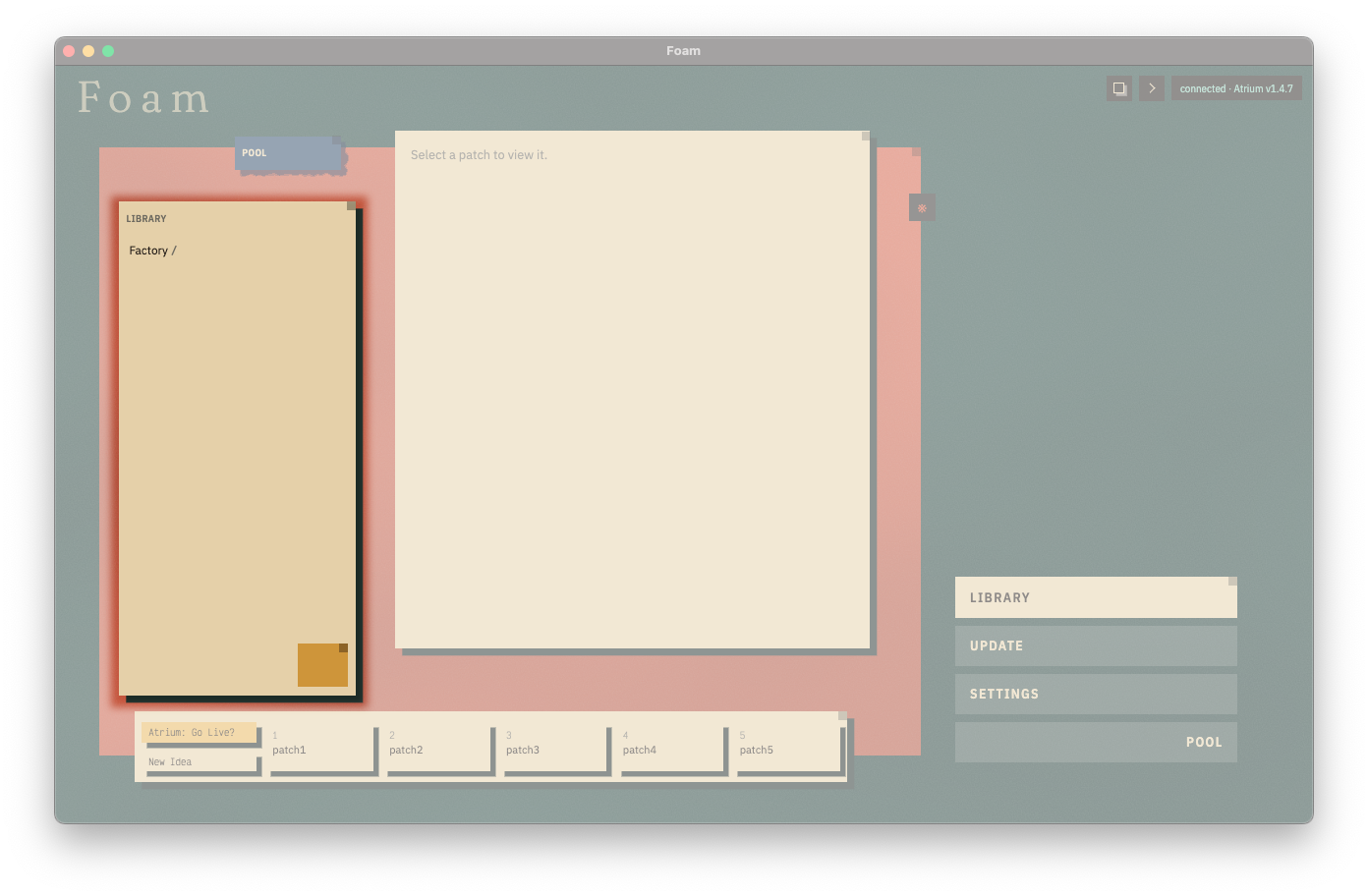
When you first install Foam, your Library starts simply with the Factory folder, which contains Atrium’s factory-loaded patches – note that this folder is special and can’t be saved into, but there's plenty to do:
- Single-click on the
Factoryfolder's name to expand it downward - Single-click on any patch file and Foam will give you a pretty view into the patch's contents
- Double-click on any patch file to view & run it live on your connected Atrium
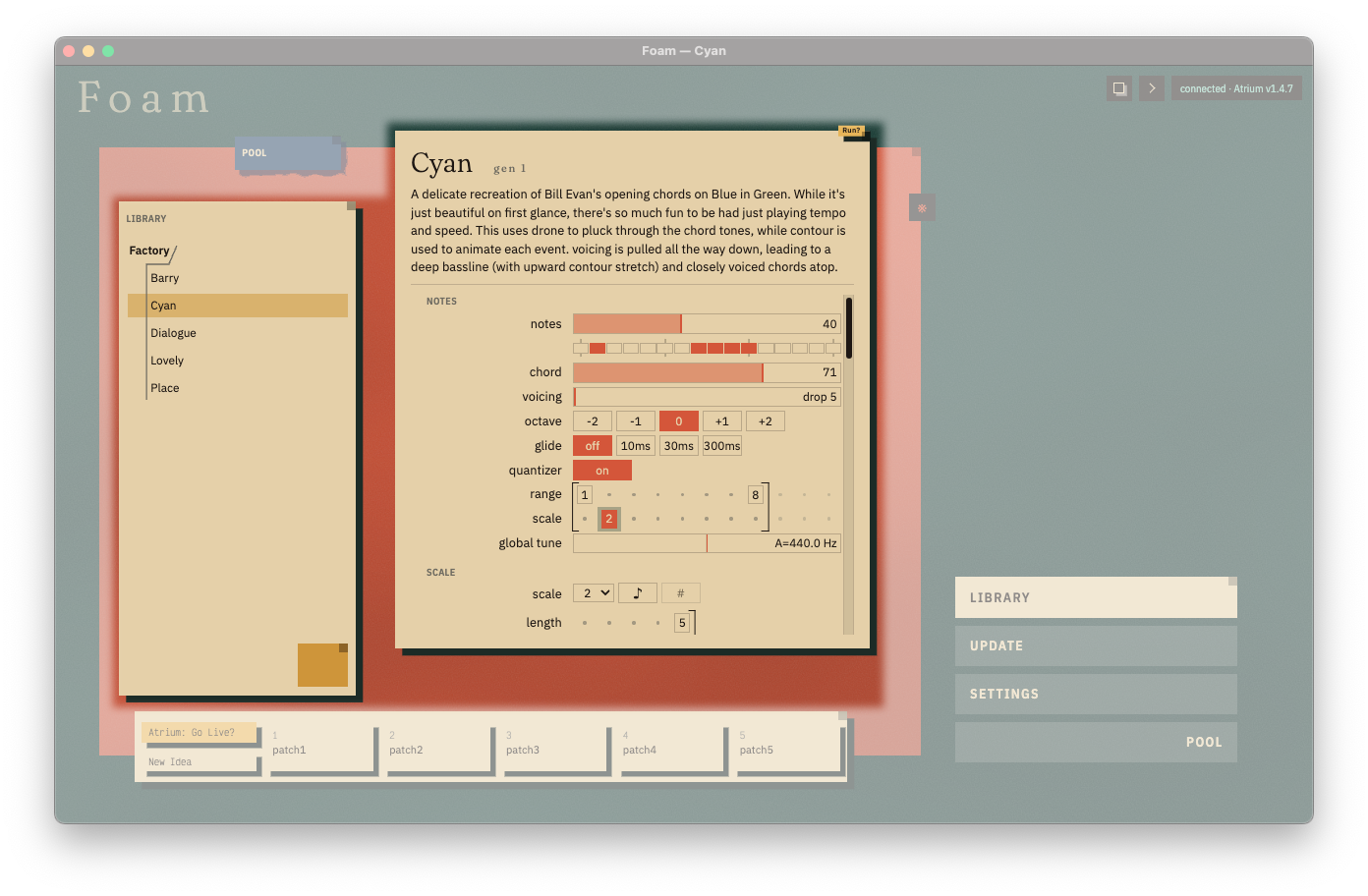
This graphical patch view is fully interactive! Click & drag any parameter to edit it, double-click values to enter specific ones with your keyboard, or use [ and ] to adjust values by-step! If you run the patch on your connected Atrium then you'll be able to make changes in real-time, bi-directionally. There's actually quite a bit of power here, so we'll dedicate some words to the Editor after we complete this overview of the interface!
Library Management
- To create a new folder, right-click in the empty space below
Factoryand select 'New Folder' - Right-click any created folder or file to rename / delete / reveal in your system's file browser
- To add patches to your Library from elsewhere on your computer, simply drag the Lua file into the Library pane!
- Patches from every Atrium firmware can be uploaded and run on v1.5+. Foam will automatically convert them to the new format.
Atrium's Memory
At the bottom of this page, you'll find links into your connected Atrium's patch memory:
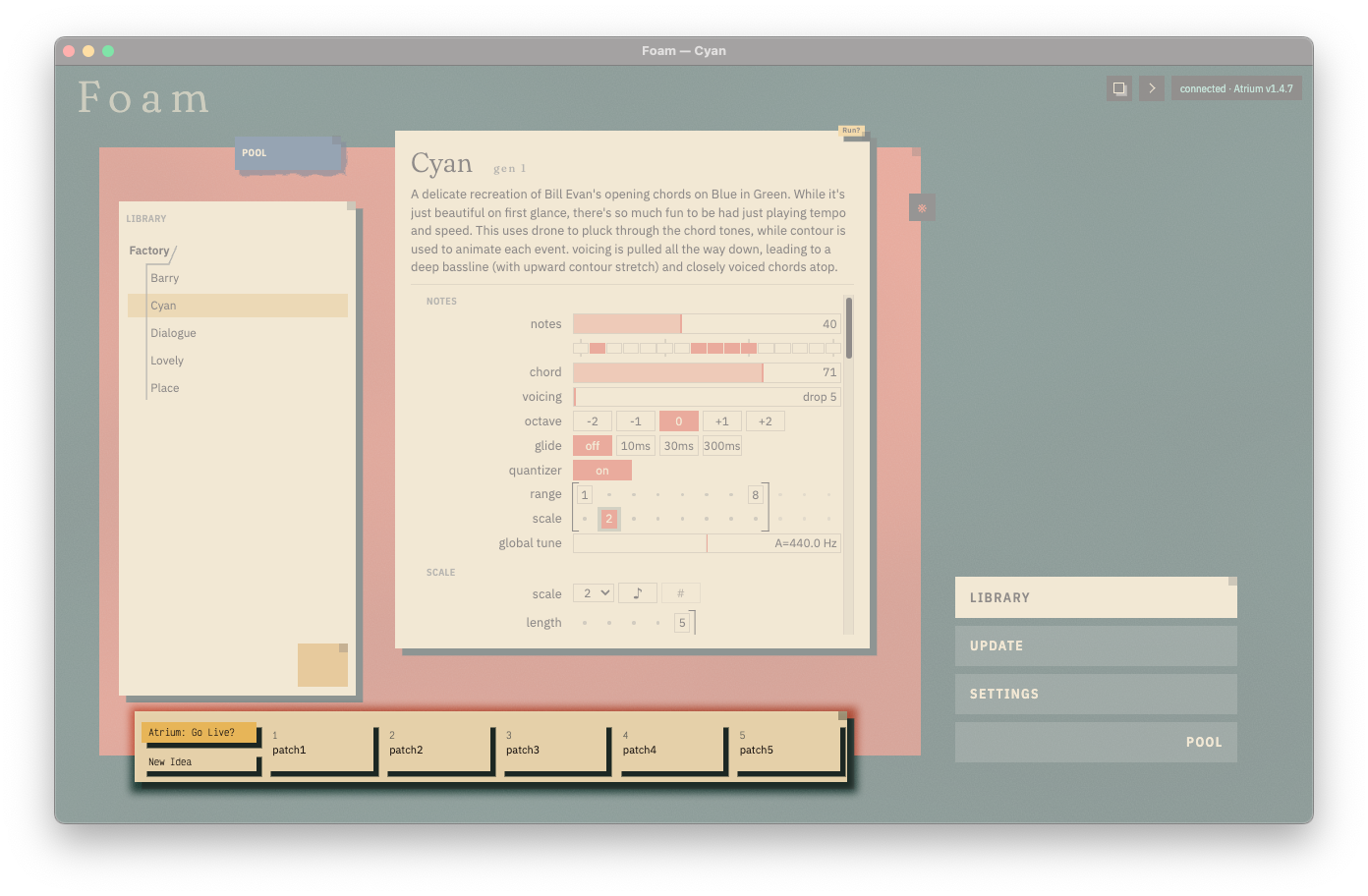
Most of this bar is dedicated to the five patches you have stored on your Atrium, numbered 1 through 5. As you name your patches, you'll see them populate where the initial patchX placeholders are. The same navigation mechanics as described above apply, with an additional superpower:
- Single-click on any patch slot and Foam will give you a graphical view into the patch's contents
- Double-click on any patch slot to view & run it live on your connected Atrium
- Whichever patch is running will display a
Live!tag in its top-right corner - Note that navigating away from the patch that's
Live!will not disrupt the real-time connection between Atrium and Foam – use this to familiarize yourself with your next patch, or to look at another file to replicate something in your current patch
- Whichever patch is running will display a
- Click & drag any patch slot into your Library to save it to your computer
- Inversely, click & drag a patch from your Library onto any patch slot to save that patch directly to Atrium
The two buttons stacked vertically on the left are special:

- Atrium: Go Live? will pull Atrium's current state to the Editor
- Whichever patch is running on Atrium will display a
Live!tag in its top-right corner - You can leave live status by clicking the same button, which will read Atrium: Live!
- Whichever patch is running on Atrium will display a
- New Idea is the blank slate template patch
- Double-click to load a new idea, same as holding load and pressing clear on Atrium
- Click & drag any patch file onto this slot to replace Atrium's template patch, where all new future ideas will be born
- This can also be done on Atrium directly
- Right-click to
Reload Factory Template, if you wish to restore Atrium's template to its original values
A word about 'gen'
You'll notice a 'gen' count next to your patch's name whenever it's loaded in the Editor. This counter is meant to give you a sense of history, reflecting how many generations of this patch you've iterated. Sometimes it'll be "first thought, best thought" and others will find themselves caught in endless renewals of samsara. It's just information, but it's sorta nice information to know.
Pool
That wavy little blue oasis? Double-click it baby.
Hear what others are making with their Atrium, on your Atrium.
Learn more after learning more: Pool.
Graphical Editor
While Foam's Library makes patch management & auditioning remarkably easy, its real magic is the Editor. The Editor allows you to view and modify your Library's patches "offline", or it can be synchronized to your Atrium's current state for instantaneous live-editing.
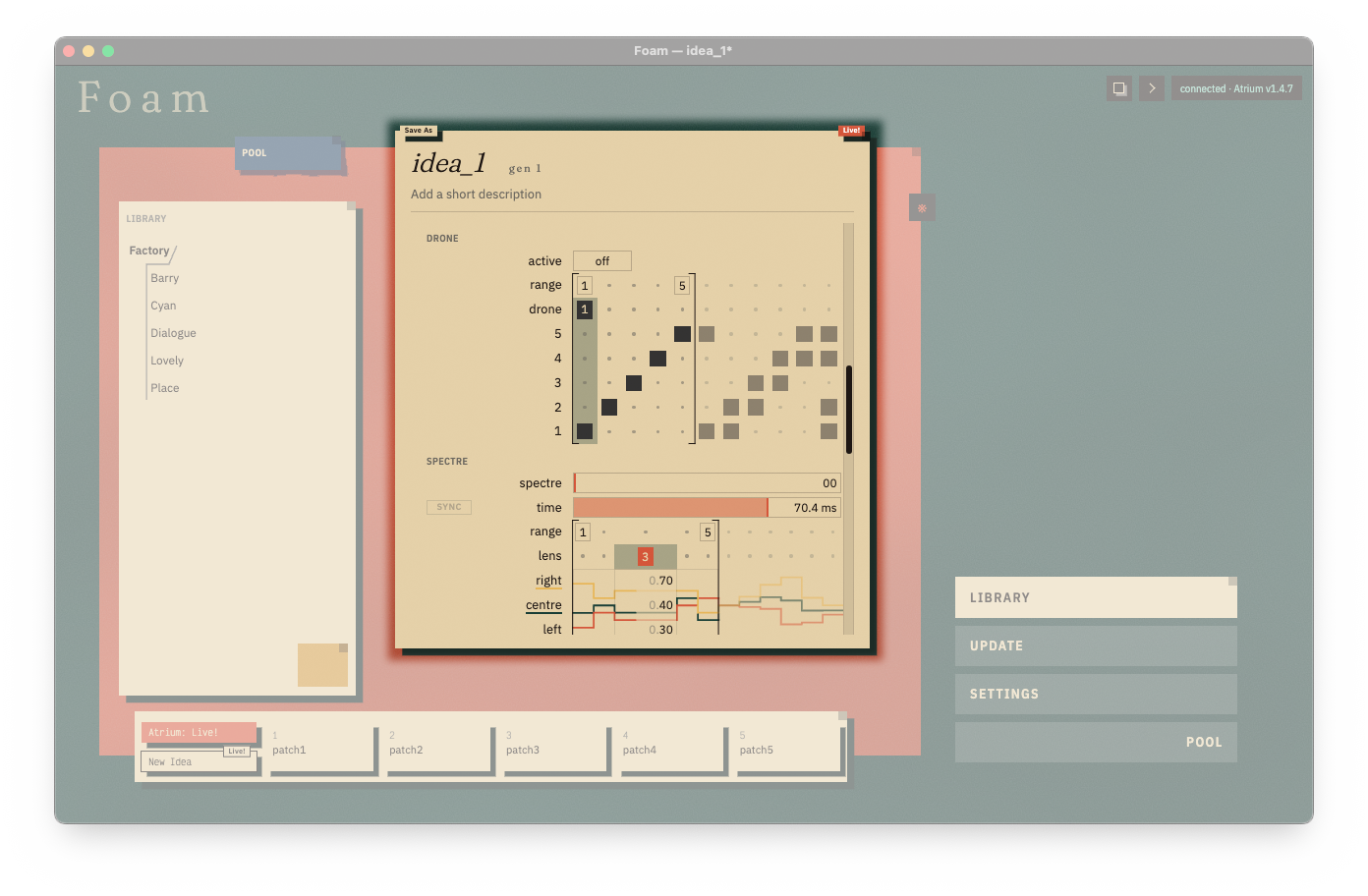
Foam's Graphical Editor charts new interactions with patches through a graphical interface. Everything you can do here you can do on Atrium directly, but there's a quality of presentation & interaction that a screen, keyboard, and mouse offer which sparks our own imaginations and we hope yours too!
General tips
- Click & drag any number to sweep a value from Foam and hear it take effect on your Atrium live!
- Hold option/alt to move in tiny steps. Super useful for adding microtonal offsets to entries in SCALE > notes!
- Double-click a parameter name or its slider in Foam to edit its value as text. Press ENTER when you’re done.
- Move a slider or knob on Atrium to see the correlated line in the Editor update live!
- You’ll notice that the current parameter being controlled in Foam has a right arrow near it
- Press tab to go to the next element, or shift+tab for the previous
- The selected parameter can be bumped up/down by pressing [ or ] (square bracket) keys. The size of the jump depends on the parameter, so it steps through logically.
- Feel free to change the patch's name or Add a short description – these will travel with your patch file.
- If you’ve made changes, you can Cmd/Ctrl+S to overwrite the file that began your session, or Cmd/Ctrl+Shift+S to Save-As into a new file / Atrium patch.
- If you're editing an existing patch, there’s also a handy
Revertbutton if you want to discard your changes are return to whatever was saved in the original version. - If you wish to return a single value to its default value as stored in the Template, right-click and select
Reset to default.
- If you're editing an existing patch, there’s also a handy
A bit about values...
You'll likely notice that this view often displays values as whole numbers, but hovering over or clicking-to-edit them reveals that many are formatted as decimals between 0 and 1:

When you're entering values in with your keyboard, Foam does a nice job of clamping the range so you can't set parameters to "bad" values – but these guardrails may confuse at first, so we're raising your awareness just in case!
There are a few parameters for which this approach won't do, though – we wouldn't force you to figure out how "125.5 bpm" fits between 0 and 1! In these cases, you can use what feels natural:
- NOTES > global tune (eg.
432will set Atrium to A432 tuning) - SCALE > notes (eg.
4/3will give you a Just-Intoned fourth) - SPECTRE > time (eg.
328automatically sets the parameter in milliseconds) - CLOCK > tempo (eg.
146or90.3or0to stop the clock) - CONTOUR > length (eg.
11.4sor0.3sor212ms) - CONTOUR > stretch left & stretch right (eg.
/2.31or*5) - LFO > speed (eg.
9.84sor3.21hzor0.2swhich auto-converts to 5Hz!)
And, finally, MAPS are always -1 to 1!
Bracket interactions
Throughout a patch, you'll see sections which are bounded by big bold brackets, which represent the sequence's start and end points:
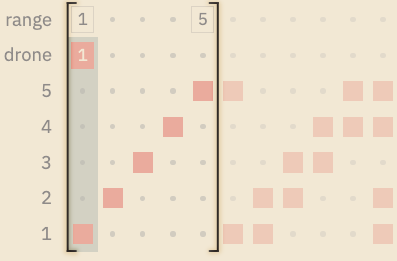
To manipulate these ranges:
- Click & drag the leftmost number to change the sequence's start point
- Click & drag the rightmost number to change the sequence's end point
- Click on any of the circular dots in the start/end point row to change the nearest bound, weighted toward the end point
- For example, in a range of 7 steps, Foam will round dots 1-3 toward the start and 4-7 toward the end
SCALE interactions
While most of Foam's Graphical Editor follows standard computer interaction, each of the lanes in the SCALE section deserves some tips to ensure fluid play:
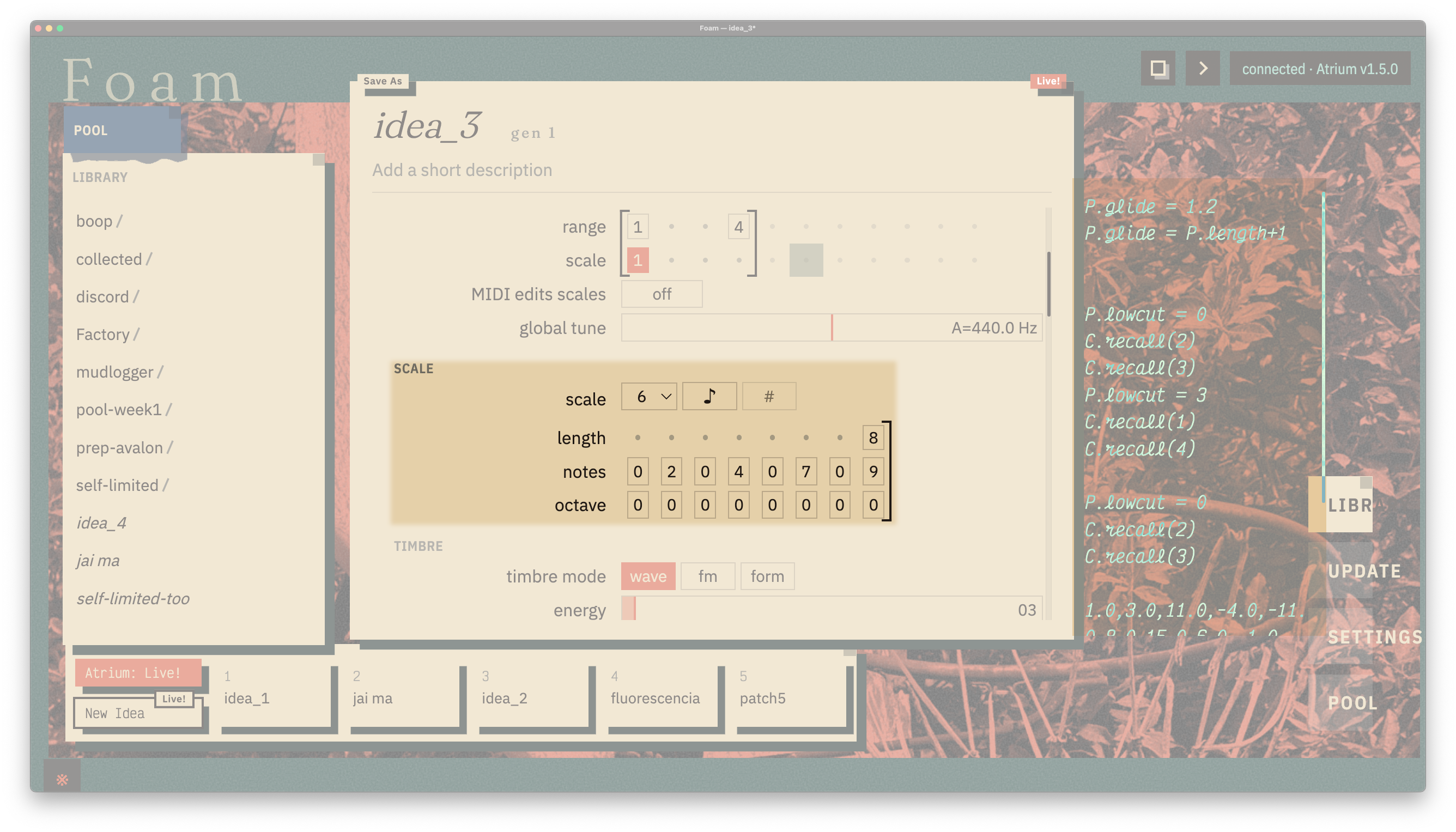
Click to expand each tip into a GIF of the described interaction.
scale
The numeric dropdown selects which of Atrium's eleven scales you're editing in Foam. To change the currently active scale, select it with NOTES > scale in the section above.
NOTES > scale in the section above.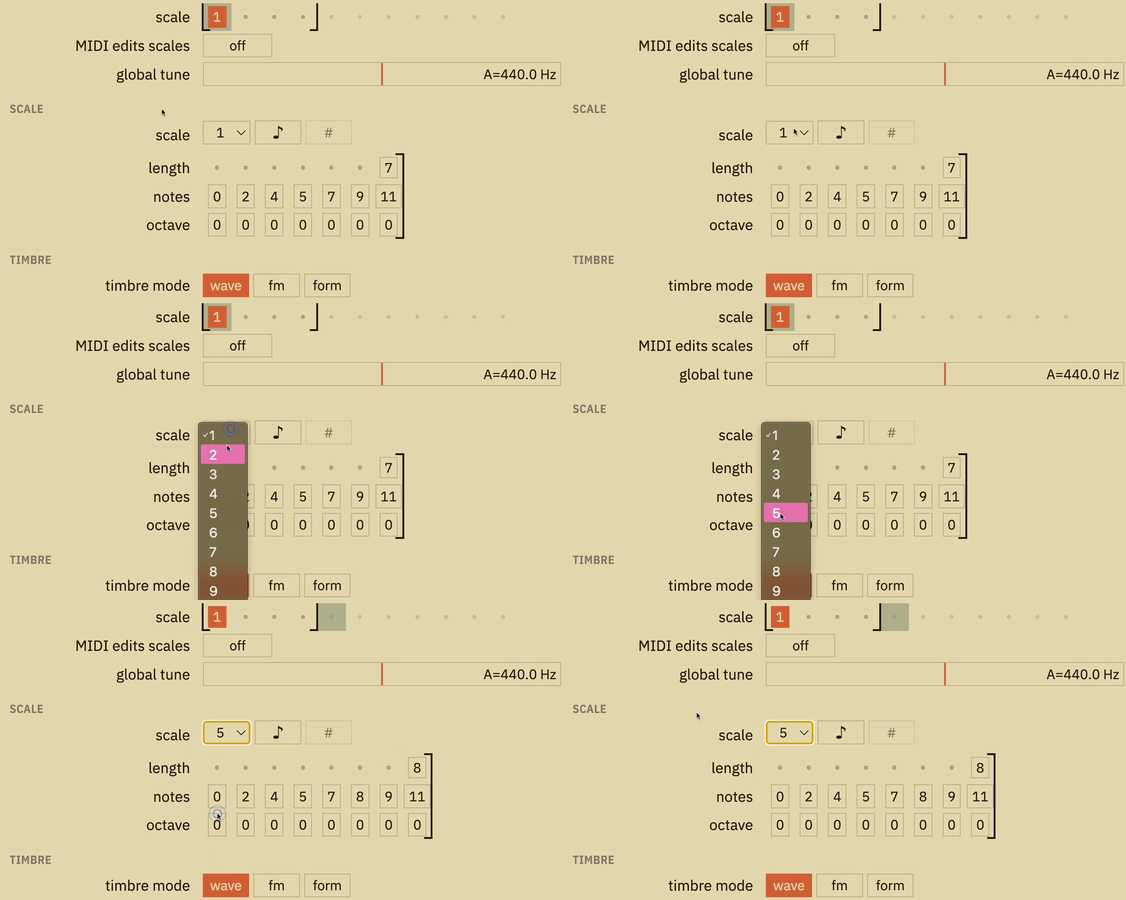
The musical note changes the formatting of the notes below from numerical semitones (eg. 0 2 4 ...) to alpha notation (eg. C D E ...). When alpha notation is selected, the # toggle selects whether notes are written with sharps or flats.
# toggle selects whether notes are written with sharps or flats.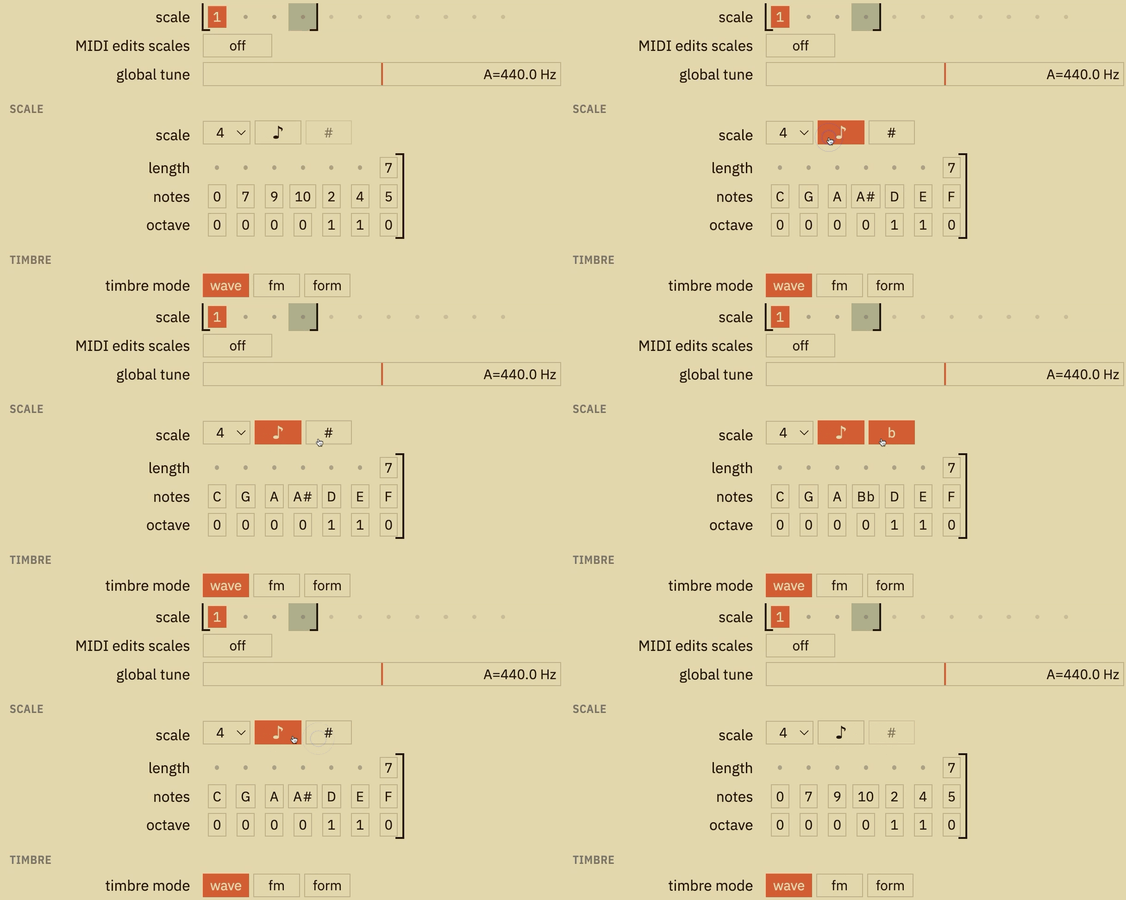
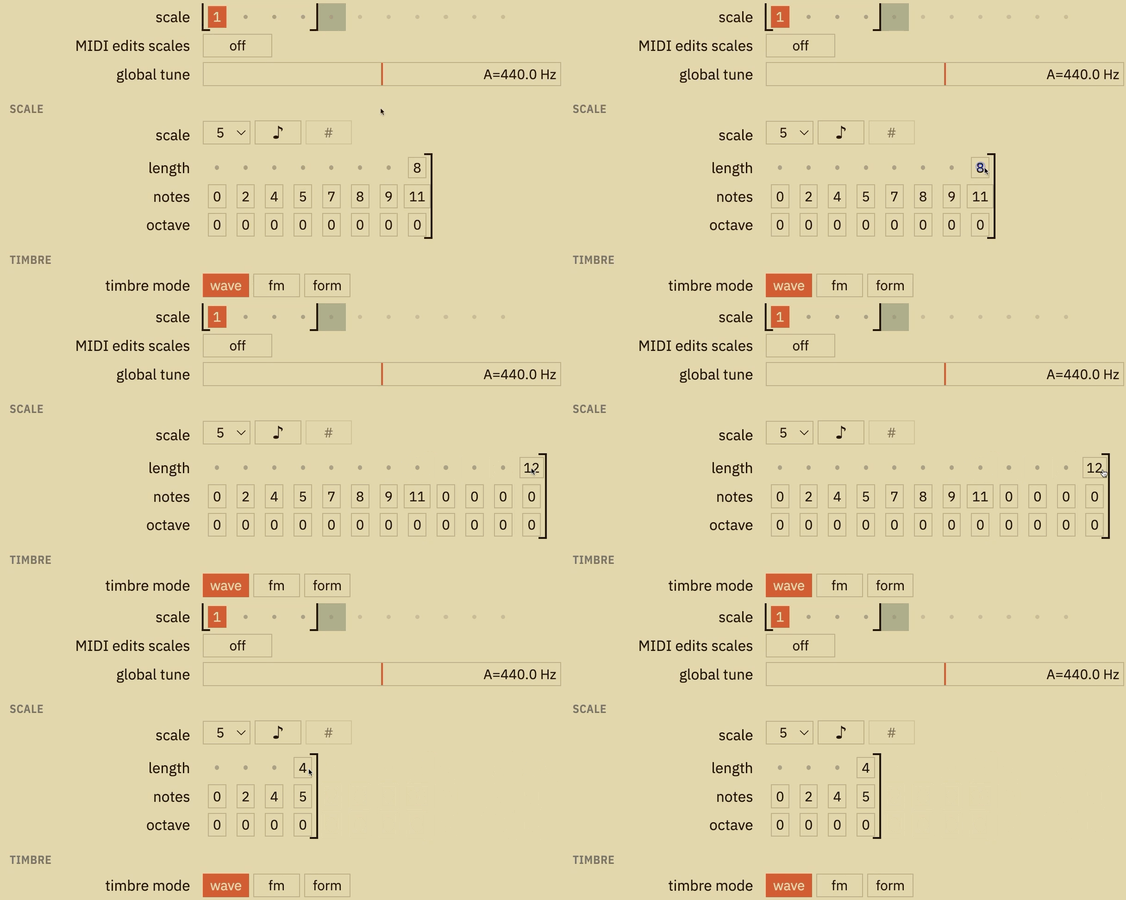
length
Click & drag the number displayed (your scale's current length) right or left to increase or decrease the total number of notes in the scale
notes
Click & drag any number (or letter, if in alpha notation) to increase or decrease that scale step by whole semitones. If you increase or decrease past the octave, your values will wrap and 'octave' below will change in response.
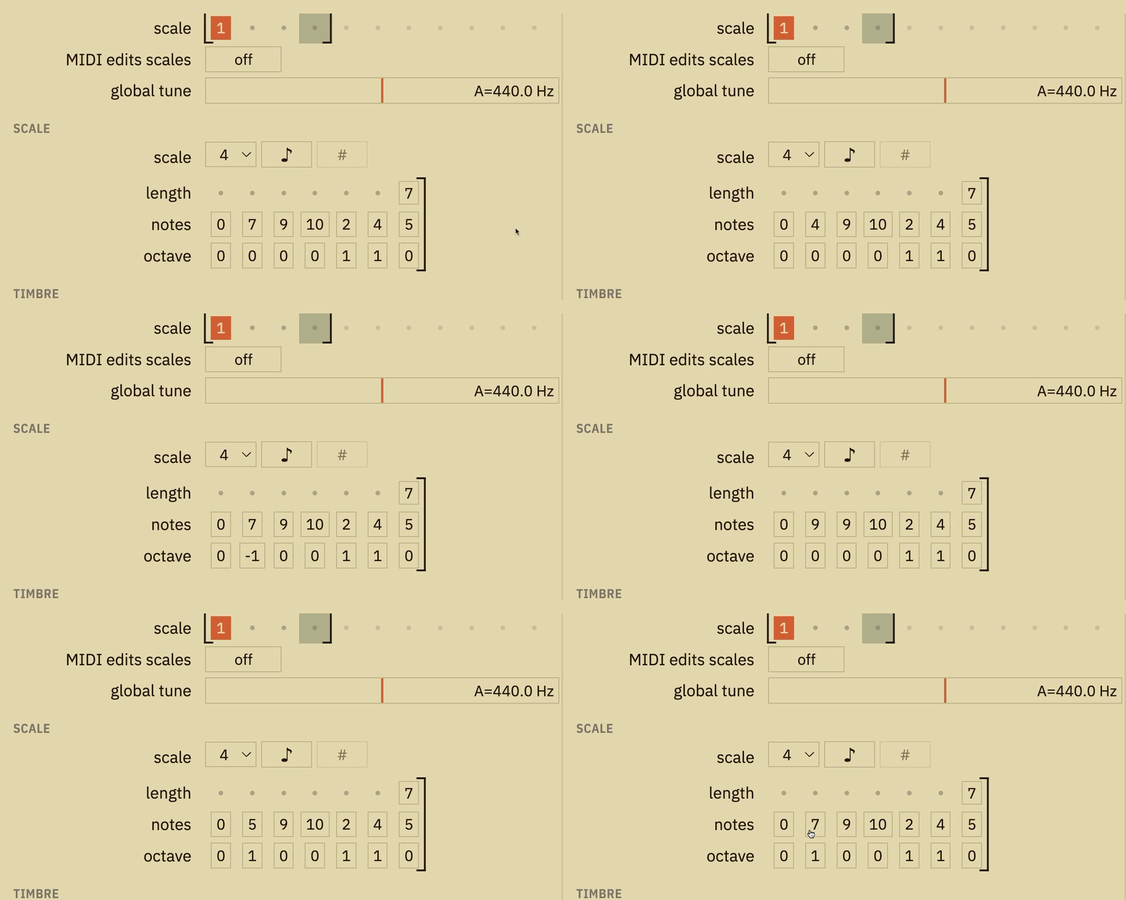
In numeric notation.
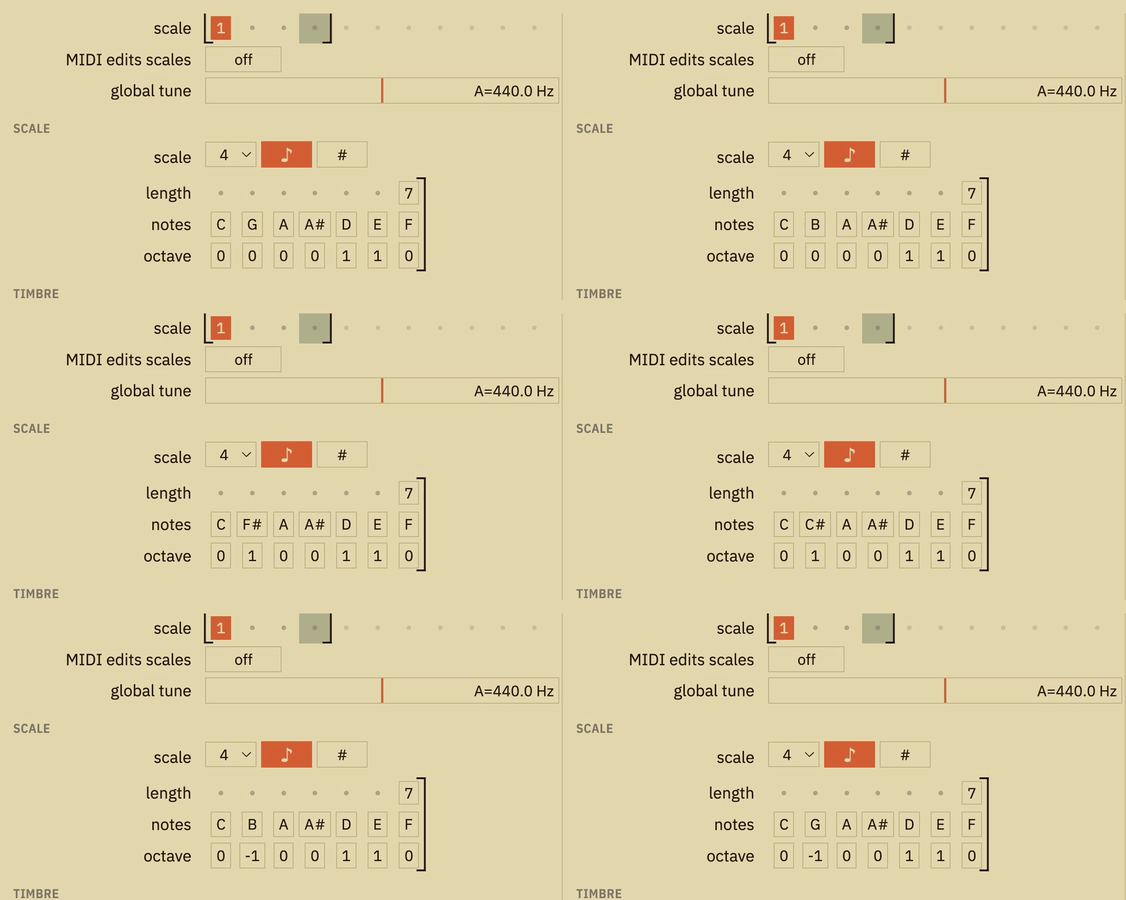
In alpha notation.
Hold option/alt while you drag a note to move in tiny steps. Super useful for adding microtonal offsets!
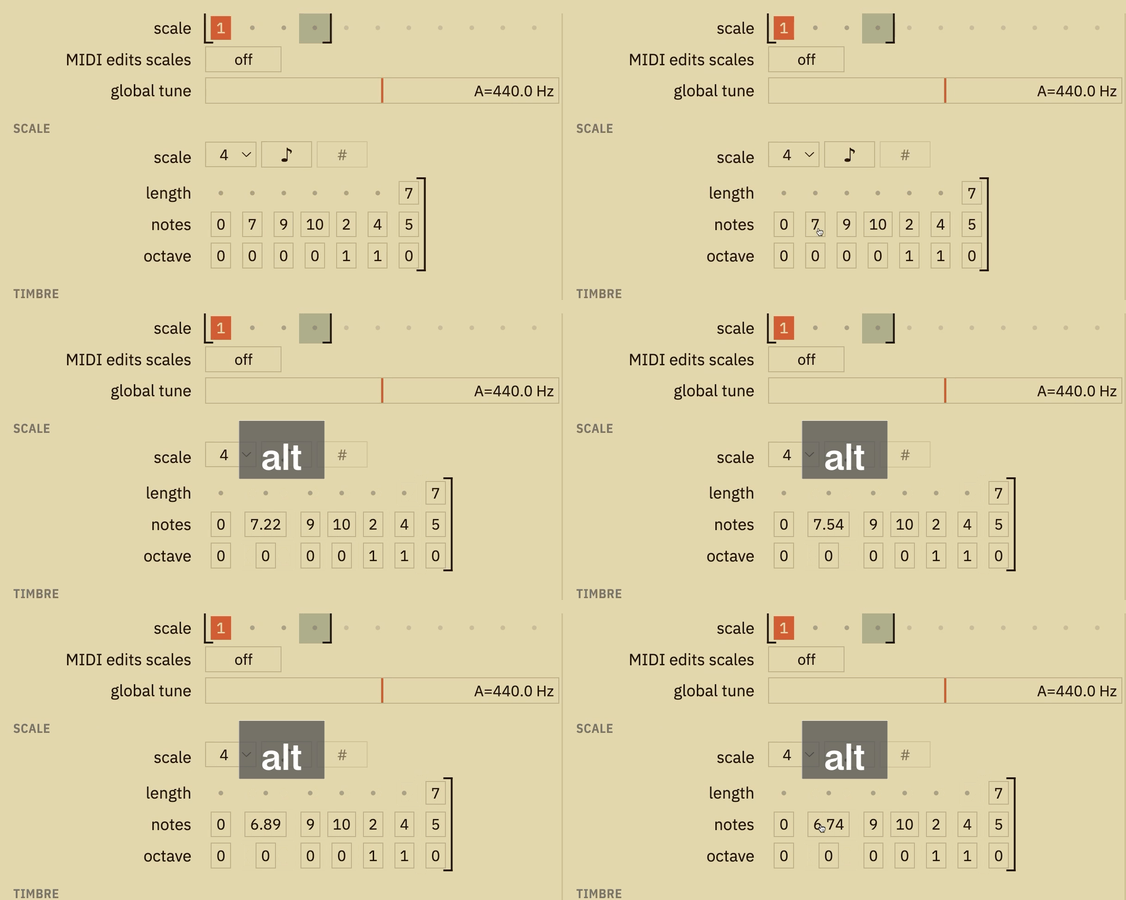
Double-click any scale step to enter a specific value with your keyboard, where 0 = C.
0 = C.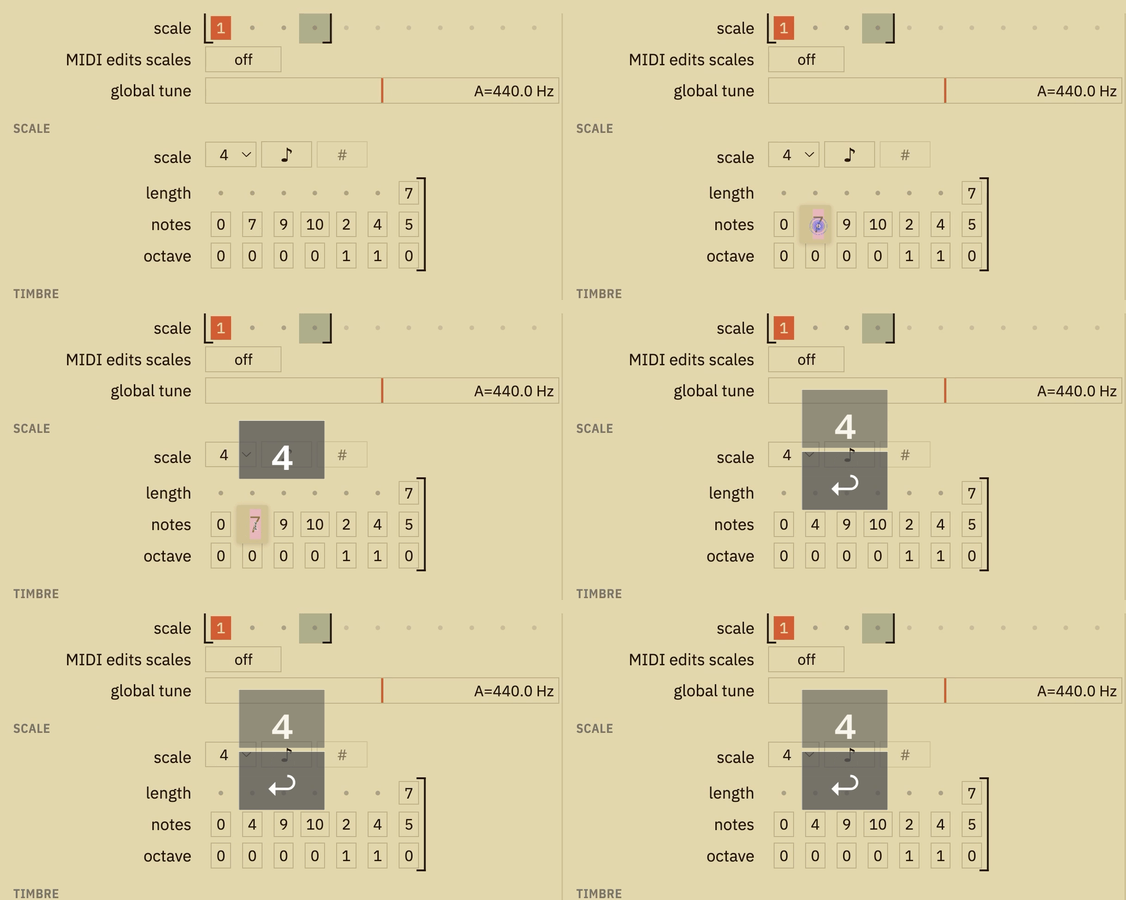
12-TET semitones can be typed direct in, eg. 4 for E
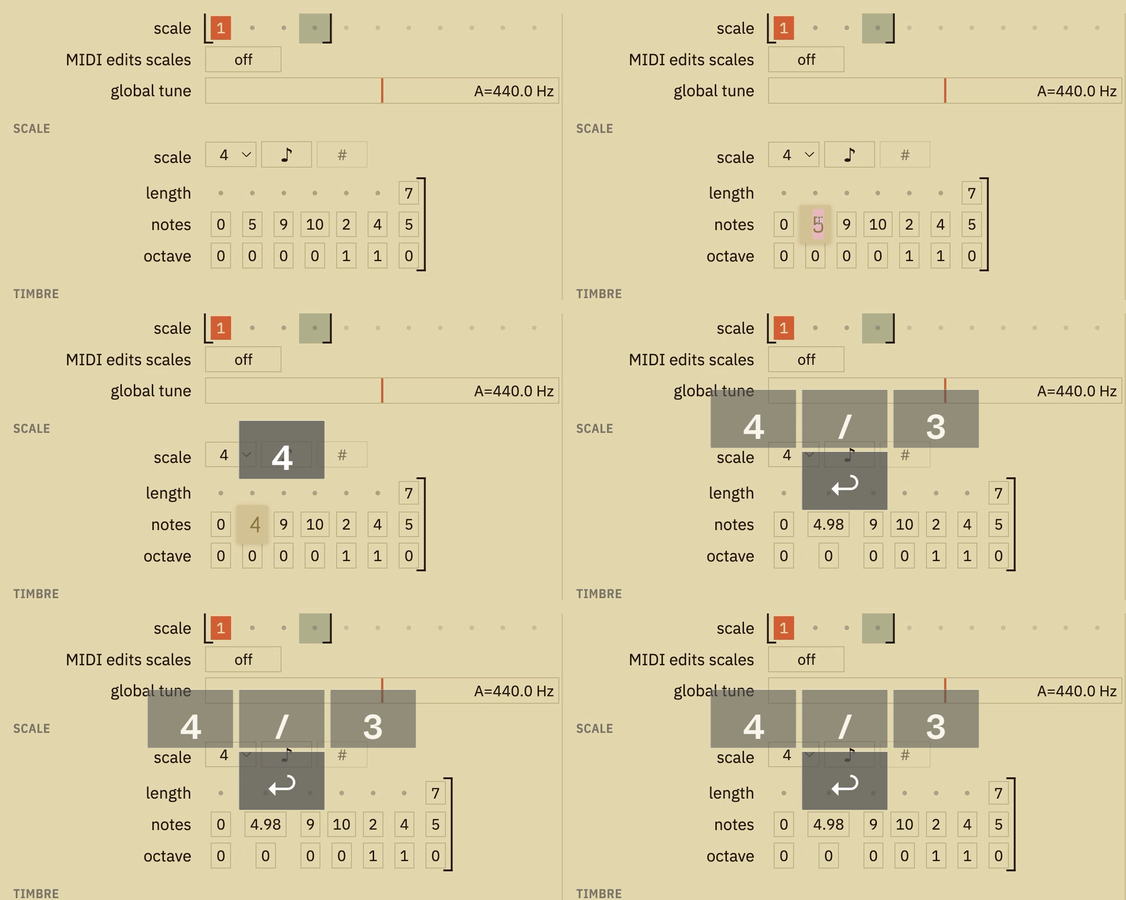
Just Intonation ratios are supported! eg. a JI perfect fourth (from C = 1:1) can be entered as 4/3, which will autoformat to 4.98045 semitones. To offset to a different root, use Atrium's on-board Scale Editor or change the leading whole number (eg. 5.98045 for a JI perfect fourth from C#).
octave
Click & drag any number to increase or decrease that scale step by octaves (-3 to +3). Note that this parameter is simply adding or subtracting 12 to the notes value above.
notes value above.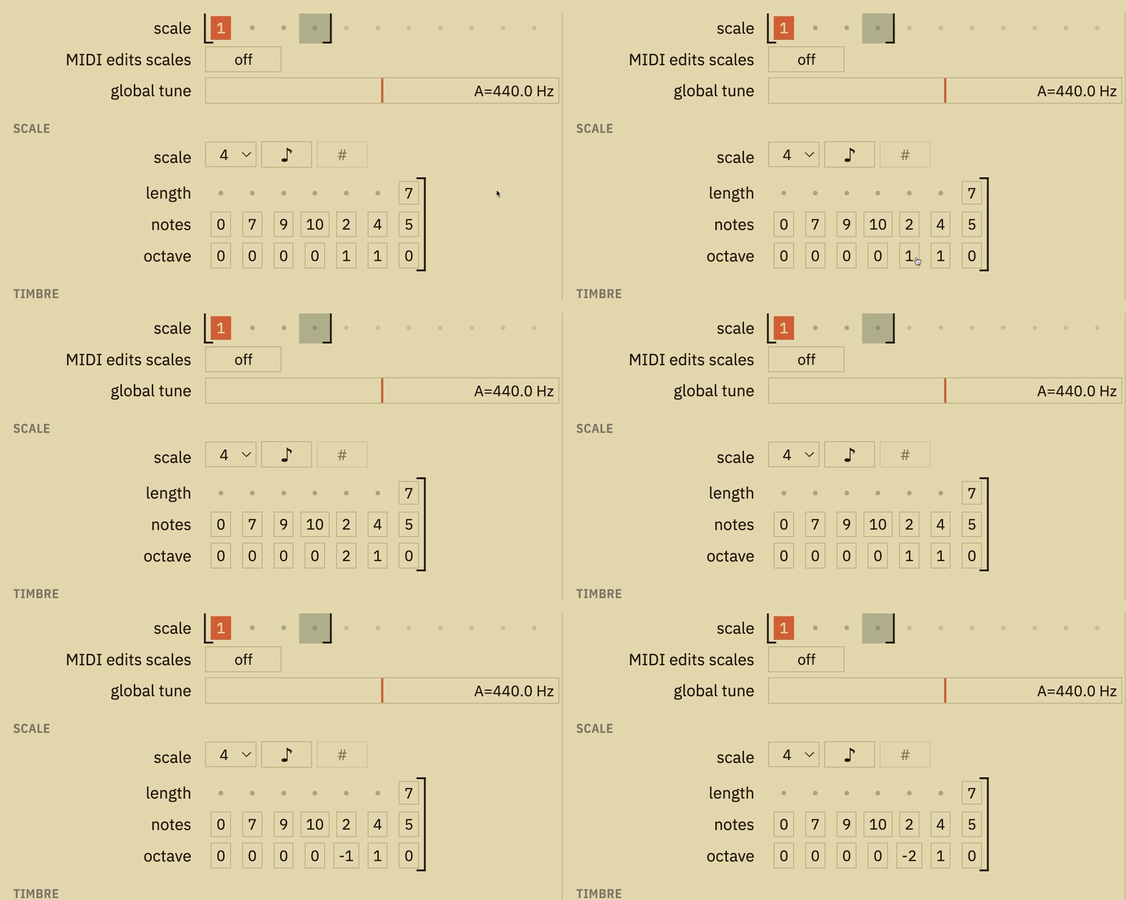
Code Editor
We've already seen how Foam first greets your patch inquiries in "graphical" mode, where UI elements try to help make your first experiences editing Atrium patches on a computer very approachable – but underneath each of these bars and selectors are parameter ID's and values, all written in Lua.
Intrigued? Give it a spin. In Foam's top menu bar, click View > Code Editor...
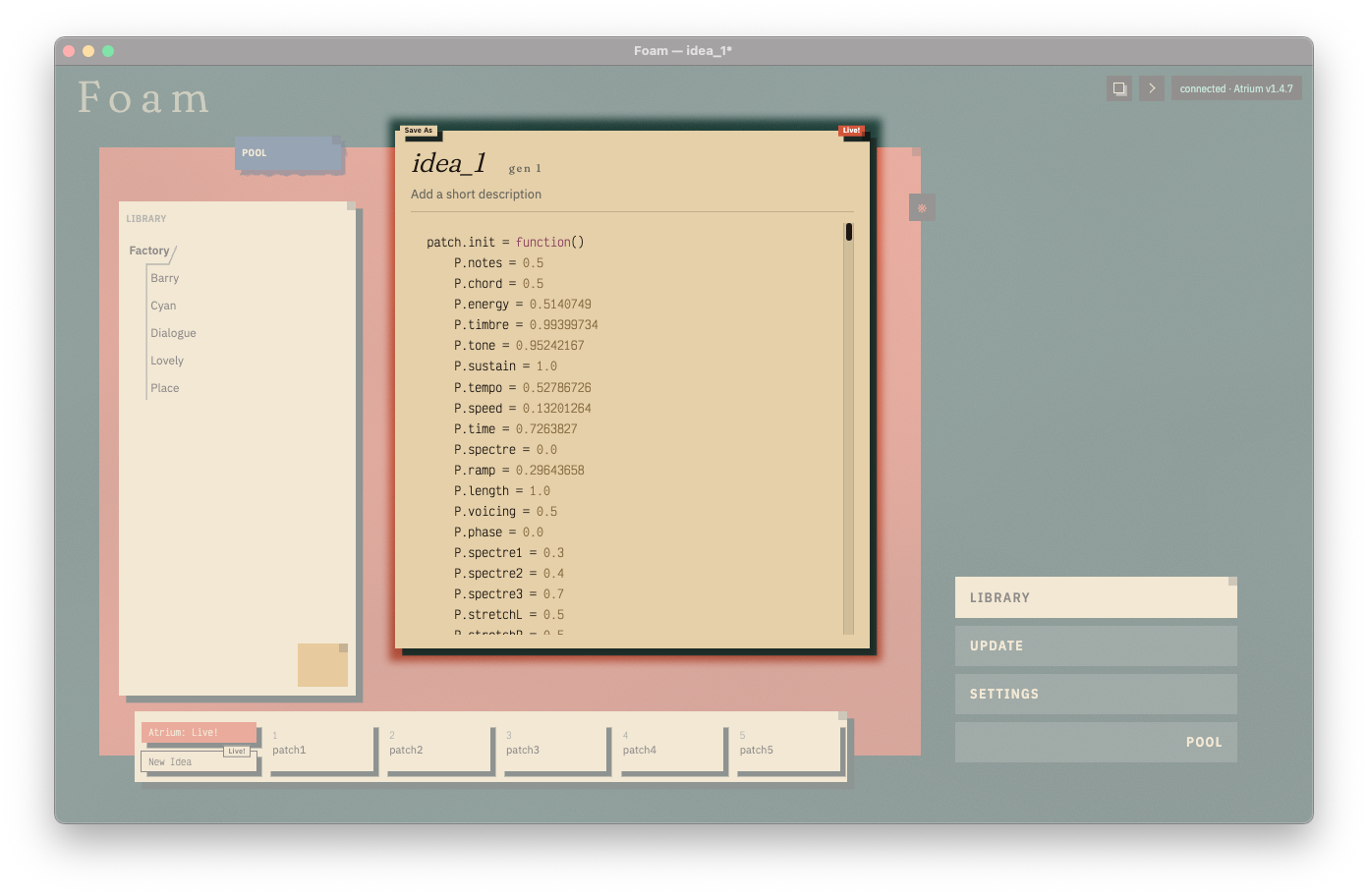
Here, we retain the graphical editor's live-edit abilities, but in new form!
Code Editor tips
- Double-click a number in Foam to edit it as text if you want to enter a specific number and press ENTER when you’re done.
- Click & drag any number to sweep a value from Foam and hear it take effect on your Atrium live!
- Hold shift while you drag to scrub in larger, coarser steps.
- Hold option/alt while you drag to move in tiny steps.
- Move a slider or knob on Atrium to see the correlated line in the Editor update live!
- Lines that have had adjustments from their last-saved state are italicized.
- You’ll notice that the current number being interacted with in Foam has a coloured background – this indicates the selected value.
- Press tab to go to the next element, or shift+tab for the previous.
- Cmd/Ctrl+C will copy the current selection, and Cmd/Ctrl+V will paste it over the current selection (particularly useful for scales, etc).
- Further, the selected value can be bumped up/down by pressing [ or ] (square bracket) keys. The size of the jump depends on the parameter, so it steps through logically.
- If you’ve made changes, you can Cmd/Ctrl+S to overwrite the file that began your session, or Cmd/Ctrl+Shift+S to Save-As into a new file / Atrium patch. There’s also a handy ‘revert’ button if you want to discard your changes are return to whatever was saved in the original patch.
If you aren't used to reading code, you should still be able to suss out your way around with either the variable names (eg. P.phase is the lfo's phase value) or just interact with Atrium's hardware and see what changes where!
All to say, experiment!! Foam's Code Editor was built to make it approachable to edit Atrium's Lua patch files – you have tools to edit incrementally, to quickly copy/paste, to see what's being modulated and how, and to revert all your changes (or even just one).
Run? Live!
Double-click or toggle the Run? button in the top right of the Editor to take your patch Live!. This is a real-time view into all of your Atrium's patch data – parameter values, customization settings, scales, mappings, the whole enchilada. This is particularly useful when you like the patch that's running, but you want to edit a specific value (eg. to keep playing sliders while also changing modulation depths). The Live! button is also the fastest way to capture a patch to your computer (via Save As), without overwriting a patch on Atrium itself (my precious…).
Update
This is where you can apply Firmware Updates to Atrium. The display has been simplified from Clerk, and gives you only what you need to update smoothly.
The important part is the box that lists the version of your attached instrument, which will show a potential update if one is available. You can open the Detailed Changes arrow if you want to see the specifics of what’s changed. Updates are much faster than they used to be, typically taking about 30 seconds after the initial jump to v1.5+ (which takes around 1 minute).
Sometimes a new Firmware requires features of a newer Foam version than what is installed:
- Foam updates itself automatically on Mac & Windows – if a program update is available, you'll see a
Restart Nowbutton on the Update page which you can click, and then unlock the latest Firmware update. - If you’re on Linux, you’ll see a note that a new version is available, which becomes less subtle when you must update Foam before being able to install the latest Firmware. Grab the update through the Software Updater, or with an
apt get(Debian) orpacman(Arch) terminal command.
NOTE: If you bought your Atrium before September/October 2026 and you’re using Windows, you might need to follow these steps if you’re seeing Foam fail to enter the updater. Devices bought after this period should automatically connect in Bootloader mode.
Settings
This section holds a few global settings that change the character & physicality of the instrument. These are offered to tune Atrium to your personal usage:
- BBD filter: defaults to
normal, which softens the presence of unwanted artifacts in the analog bucket brigade device signal chain. To change the tonality of spectre-heavy patches, trygrit. - Touchplate sensitivity: adjusts the sensitivity of touchplates across Atrium. Our workshop default is
sensitive, but we recommend trying different modes as they may bring new depth to your interactions. - Lighting brightness: Though we find Atrium's default lighting level to have a nice legible balance, playing in dark environments or outside in the daylight under a tree can demand different baselines. Switch between
normal,dim, andbright, depending on your physical setting. - MIDI input channel: defaults to
all(meaning any MIDI message is received by Atrium), but you can change it to a specific MIDI channel if you have a complex multi-device MIDI chain. This setting is global, though it can be customized on a per-patch basis if desired.
After you're satisfied with your selections, click “Save to Atrium” so these settings will come back every time you turn on your instrument.
Pool
A community gathering place where you can express yourself & perhaps connect with others. We'll keep it brief because we want to see what you make of it, but here are the basic mechanics:
- Type your handle in the
namefield (you can change at any time) - Hide handles in the display with the
@toggle button - Type a message in the “write, click, post!” field – hover your cursor in the field to preview where the message will go, then click to drop it & push it into the Pool
The 100 most recent posts are visible, with the 50 oldest fading away.
This is an ephemeral space to play. Make some ASCII art / Unicode madness. 140 character limit per post. Emojis allowed, but you have to find the Unicodes yourself. Many languages! This space is just the infrastructure, you'll make it what it'll mean.
Oh, right, also...
Toss in the Pool
Share any patch from your Atrium or Library with the entire player community:
- Right-click an Atrium patch slot or a Library file
- Select
Toss in the Pool - You'll be brought to the Pool and your crosshairs will be loaded up with your patch to toss it in. Aww yeah, it's a different type of post altogether!
(Note that you cannot delete a patch once you share, so make sure it's got the good stuff in it.)
As others share, the Pool will likely populate with these framed offerings:
- Double-click any Pool patch to run it on your connected Atrium.
- Like what you hear? Right-click that Pool patch to
Save to Library(or save it from Library if you've already taken it Live!)
Meta-tools
Beyond these core interactions, notice the icons in the top-right of Foam:

These provide additional tools for further adventure.
Layout Designer
Foam is a place, your place, so make it your own! Click the squares to open the Layout Editor and customize how Foam looks. We won't spoil the fun here, but just note:
- Cmd / Ctrl & L toggles the Layout Designer on / off.
- Drag panels by the top, resize with the bottom-right.
- Also, you can always move panels around outside of the Layout Designer by the handle in the top-right.
- In the Layout Designer, drop an image onto Foam to personalize it! You can also import images into
~/Documents/Atrium/photosto make them available. - You can freely resize the window and adjust the text size to your liking with Cmd/Ctrl & + or Cmd/Ctrl & -.
All layout changes are saved & restored each time you load, but if you want to start over you can select Edit > Return to Default Layout to destroy the old & start anew.
Console
SPACE UNDER DEVELOPMENT.
For the adventurous. No guarantees that it'll stay working the same way tomorrow (at least until scrolls are available).
But, since you're here, we should mention...
The Panels
In each space, one colored panel sits dormant and the other tempts text entry as you hover!
These are scratchpads for any notes you wish to take as you explore and uncover.
An open secret...
If you do get comfortable with the Lua code of patches, these panels can live-execute any selected code chunk! Either simply place the cursor anywhere in a line, or highlight many, and execute the text with Cmd/Ctrl & Enter. Anything that's executed will print to the Console, so you can keep track of your history.
This gesture offers a unique way to create very (and many!) specific changes on Atrium, which would otherwise be very difficult manually. For a taste, map the lfo to sustain and execute each of these lines individually:
P.phase = 1/3
P.phase = 2/3
P.phase = 1/8
Or try randomizing Atrium's timbral controls (and engine!) by executing all four of these lines together, again and again:
P.energy = math.random()
P.timbre = math.random()
P.tone = math.random()
P.tmode = math.random(1,3)
Atrium does have a LOT of parameters that are 0 to 1...this could get fun!
Windows Troubleshooting
If you bought your Atrium before September/October 2026 and you’re using Windows, you might need to perform the following steps if you’re seeing Foam fail to enter the updater. Devices bought after this period automatically connect.
Manual Driver Assignment: Windows
- Download Zadig and run the program
- If Atrium is not yet in
loadermode, hold Atrium's blackgesturekey andtapwhile powering - Once Atrium is in
loadermode, it should populate in Zadig's Device dropdown asAtrium Bootloader- Don't see it? Click
Options > List All Devices - DO NOT select any other devices which are not
Atrium Bootloader
- Don't see it? Click
- With the
Atrium Bootloaderdevice selected in Zadig, ensure that the destination driver isWinUSB (v6.1.7600.16385) - Once the above is verified, click the
Install Driverbutton in Zadig:

- Zadig will now install the driver, which may take some time. When it's completed, it will alert you that "The driver was installed successfully" and you'll see that the
WinUSBdriver was assigned to theAtrium Bootloaderdevice:

- Feel free to close Zadig – you should not need to follow this workflow for future updates, as your Windows machine now has a driver assigned to Atrium's
loadermode! - Back in Foam, click
Updateagain and you should be able to perform the update.
Firmware Changelog
Though this is a Players' Manual and not an Operator's Handbook, it does seem useful to capture a summary of Atrium's version-to-version changes.
v1.3.2 → v1.5
This two-revision jump brought a major overhaul of the Atrium runtime. Everything is more responsive – from faster modulation calculation to more accurate timing. Plus, a whole new way to bring your computer into the fun.
new
- Foam compatibility enabled! Live-editing of patches from a computer, a deeply integrated Library manager, and communal space for players to connect →
- Global setting for “MIDI Input Channel” is available (with per-patch override if needed) →
- Re-define the current scale using MIDI →
- MIDI pitch & velocity are now map sources, which optionally allows disabling default mappings of incoming pitch on notes and incoming velocity on sustain →
- Static CC map on MIDI Channel 16 →
- Template patch is now re-writable →
changed
- spectre knob's volume is more consistent in the first third of the throw (where Dry & Filter crossfade)
- All lfo shapes are now animated & the icon shows the current shape during mapping
- sequences can be shrunk to a single step (previously, lowest was two steps)
- Touch plates are now more spatially linear and action is adjusted for better response
fixed
- Loading & saving patches no longer fail sporadically, especially during longer sessions
- When volume knob is at zero (CCW), all voices & delay feedback are silenced (for true main output silence)
- Notes slider could occasionally miss the top note when pushed to the max position
- lfo in 'sinc' mode could crash when it was mapped to a clock-synced parameter
- Touch plates now react normally when gesture recording is active (touch is still not recorded)
- Mapping & MIDI learn can now be adjusted with finer steps (especially useful for tiny adjustments)
- Tap-tempo is correctly saved & recalled in patches
- USB device connectivity now much more resilient and forgiving
- Scale Editor auto-enables
scaleon entry, refusesscaledeactivation, and shows microtonal adjustments when clearing - Current patch state would be lost when saving global settings
- CV inputs would be slightly offset so 0V would register as a subtle modulation
v1.2.1 → v1.3.2
v1.3.x is largely focused on all things clock – beat-synced timing parameters, allowing modulators to be mapped to tap-tempo, and generally improving the stability of clocking system-wide.
new
clock
- Timing parameters can now be synced to Atrium's clock. See 'Sync' Mode for more info!
- Modulators can be mapped to tap-tempo, including external control voltage. See Modulated tap-tempo for more info!
- gestures can be quickly quantized using the Gesture Syncing Shortcut.
- When Atrium is running on its internal clock without tap-tempo:
- clear + tap resets the phase of the clock & sends a MIDI Start message to any followers
- turning tempo full CCW stops the clock and sends a MIDI Stop message to any followers
- turning tempo CW from 'stopped' sends a MIDI Start message to any followers
improved
clock
- Better MIDI clock sync, in & out.
contours
- Looping contours complete their cycles when sustain is zeroed or strum is released.
- Looping contours restart their cycles (either re-entering the attack phase or starting a new envelope) when sustain is quickly raised or strum is engaged.
fixed
general
- Fixed sound engine crash when receiving super-high MIDI notes while octave is at maximum.
- Removed strum touchplate timeout, which allows contours to be sustained with touch for as long as you want.
- spectrum's baseline sensitivity has been increased to feel more consistent with the other touch panels.
Patch v1.3.1: FIX when selecting MIDI clock input, Atrium's clock wouldn't start until a MIDI 'start' message was received. Now clock auto-starts to follow devices that don't send MIDI transport controls.
Patch v1.3.2: FIX when Atrium was saving, and also receiving MIDI Clock faster than 40bpm, the clock input would stop working. With very high tempos, the system would crash – no longer!
v1.1 → v.1.2.1
v1.2.0 is focused on making the update process of Atrium more resilient, along with some niceties like faster boot times, and kind lighting fades. A fix to the controller port (USB Host) is included too.
v1.2.1 is focused on improving incoming MIDI connectivity and stability.
new
general
- Lights fade in gently upon power-up (previous behavior: abrupt pulse, then all-bright)
fixed
USB Host
- Driver is now fully asynchronous, so there's no light stutter when connecting a device to the
controllerport
(v1.2.1) MIDI
TRS MIDI:
- Multiple issues causing stuck notes are resolved
- Added support for Roland UM-ONE mk2 (as well as other legacy DIN MIDI devices)
USB MIDI (controller):
- Issues causing stuck notes upon connection are resolved
- MIDI clock can now be sent to the connected controller
- Added support for OP-1 and OP-1F (as well as others with similar USB descriptor issues)
- Added support for Melbourne Instruments Roto-Control to be recognized as a MIDI controller (as well as others that expose additional CDC ports)
USB MIDI (computer):
- Sending MIDI clock from Atrium to a Windows PC now works correctly
v1.0 → v.1.1
new
- The Clerk: A one-stop shop for firmware updates, settings modifications, and patch saving & loading.
- spectre filtering: The presence of time artifacts in the analog bucket brigade device signal chain has been softened. Two flavors:
normal(this is the filter-adjusted configuration, which is the new default) andgrit(the original v1.0 settings, with some time whine). - controllable lighting brightness: Either reducing intensity (
dim) or adding more contrast (bright). - controllable touch sensitivity: Three modes of responsiveness:
normal,sensitive, andhyper.
improved
general
- the recently-recalled cluster will pulse while holding chord
- better lighting information consistency
- UI generally runs at higher refresh rates
MIDI
- clear learned MIDI destinations
- map MIDI CC’s to touchplates: voicing, phase, spectrum, and stretch
- MIDI sustain pedal CC 64 now implemented to sustain voices
- MIDI learn now uses the gesture LED strip to display the current CC value
clear+midiclears all MIDI notes (on-board "panic")
spectre
- time has been reshaped to provide higher accuracy at fast times
fixed
general
load+clearnow more resilient and no longer requires double-execution to leave high-intensity patches- loading saved patches is now more reliable
- clock:
clear+tempoclears tap-tempo - scale editor: longer sequences accurately displayed and stepped-through
gestures
- gestures now follow changes to tempo
- when recording a gesture, starting another gesture recorder will now stop the previous (and start its playback) for fast overdub-style workflows with multiple recorders
- step now quantizes to clock pulses, creating more of a sample+hold effect
- recording long gestures no longer slow down runtime
MIDI
- Atrium maps incoming note velocity more smoothly
- clock out via TRS MIDI now working
- MIDI "panic" (CC 123): all notes off
- MIDI learn settings now saved in patches
- MIDI SysEx messages are correctly ignored (could cause bogus notes previously)
- when MIDI devices are connected to the controller (USB-A) port, latency is dramatically improved, and no longer slows down the core modulation loop
- USB devices that enumerate a serial port along with MIDI now expose the MIDI signals (eg. monome iii grids and arcs)
- MIDI support for Elektron Digitone and Digitakt Mk1 connected to
controllerport